

The Peaka Tableau JDBC connector provides a connection dialog and SQL dialect for Tableau Desktop. Install its TACO package and a compatible JDBC driver separately. Use this connector as the primary SQL integration path; the Web Data Connector is a legacy option.
Download
Source code, build instructions and versioned unsigned packages are available on GitHub. Download PeakaStudioJDBC-v1.0.2.taco and SHA256SUMS.txt. See the release notes for version details. Verify the downloaded file against its SHA-256 checksum.
Use Tableau Desktop 2020.4 or later. Have a Peaka project with connections and catalogs ready before connecting.
Install the connector and driver
- Place the TACO in the Tableau Desktop connector directory:
- macOS:
~/Documents/My Tableau Repository/Connectors - Windows:
%USERPROFILE%\Documents\My Tableau Repository\Connectors
- macOS:
- Move older Peaka connector versions out of that directory.
- Install Peaka JDBC 1.2.0:
- macOS:
~/Library/Tableau/Drivers - Windows:
C:\Program Files\Tableau\Drivers
- macOS:
Move older Peaka JAR versions out of the driver folder. Install the TACO and Peaka JDBC JAR separately. Create the folders if they do not exist, and make sure Tableau can read the files.
For administrator-managed installations, the connector folders are:
| Application | Windows | macOS / Linux |
|---|---|---|
| Tableau Prep Builder | %USERPROFILE%\Documents\My Tableau Prep Repository\Connectors | macOS: ~/Documents/My Tableau Prep Repository/Connectors |
| Tableau Server | C:\Program Files\Tableau\Connectors | Linux: /opt/tableau/connectors |
Have your Tableau administrator configure the connector and driver for Prep or Server.
The walkthrough below uses Desktop. For Tableau Server, install the JDBC JAR in
C:\Program Files\Tableau\Drivers on Windows or /opt/tableau/tableau_driver/jdbc
on Linux.
For Tableau Server 2021.1 and earlier, use the connector directories under the Server installation instead:
- Server:
[Tableau_Server_Installation_Directory]/data/tabsvc/vizqlserver/Connectors - Prep Conductor:
[Tableau_Server_Installation_Directory]/data/tabsvc/flowprocessor/Connectors - Prep Flow Authoring:
[Tableau_Server_Installation_Directory]/data/tabsvc/flowqueryservice/Connectors
Start Tableau with an unsigned package
These packages are unsigned. Quit all Tableau Desktop processes before launching a session with signature verification disabled. This applies only to that process; it does not set a persistent preference. Adjust the application path to your version.
macOS:
open -a "/Applications/Tableau Desktop (Apple silicon) 2026.3.app" --args -DDisableVerifyConnectorPluginSignature=trueTo save a reusable macOS launcher, create a text file named tableau.sh containing
this command, adjusting the application path:
#!/bin/sh
"/Applications/Tableau Desktop (Apple silicon) 2026.3.app/Contents/MacOS/Tableau" -DDisableVerifyConnectorPluginSignature=true
From the folder where you saved the file, run:
chmod +x tableau.sh
./tableau.sh
Windows Command Prompt:
"C:\Program Files\Tableau\Tableau 2026.3\bin\tableau.exe" -DDisableVerifyConnectorPluginSignature=trueThe existing connector enables TLS but sets SSLVerification=NONE, so it does not
validate server certificates. Review certificate verification and trusted signing
before adopting it in production.
Generate a Peaka API key
Create a project API key with the permissions needed to read metadata and execute the queries you intend to use.
Connect to Peaka
In Tableau, choose Connect → To a Server → More → Peaka Studio by Peaka.

Enter Peaka DBC Server, Port and Peaka API KEY, then click Sign In.
Peaka Cloud defaults are dbc.peaka.studio and port 4567. For on-prem installations,
get the external DBC hostname and TLS port from the installation administrator. Enter
the hostname without https:// or a path. The Studio URL, Partner API URL and DBC
endpoint are different services.
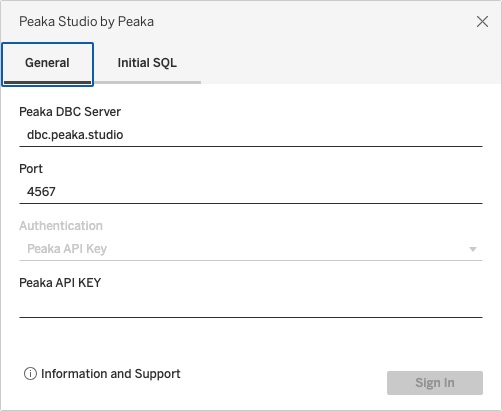
Choose a catalog and schema to see your tables. Select the table you want to analyze, or use Custom SQL to enter a query, then open a worksheet.

Partner API keys and project selection
If your Peaka installation supports selecting a project with a partner/organization
key, enter <PARTNER_API_KEY>:<PROJECT_ID> in the Peaka API KEY field. The project
ID selects the Peaka project during authentication. After connecting, Tableau's
Catalog selector chooses a catalog within that project.
If your installation does not support partner-key project selection, use a project API key. Ask your Peaka administrator which key type to use.
Tableau Server and Tableau Cloud
Create your data source in Desktop first. Before publishing it to Server or Cloud, ask your Tableau administrator to confirm connector availability, credentials and network access for refresh. Private Peaka installations may require Tableau Bridge for Cloud refresh.


