This article guides you through the process of connecting ActiveCampaign to Peaka, allowing you to seamlessly access your ActiveCampaign data within the Peaka platform.
Prerequisites
Before you start, you will need an API Key and an API URL from ActiveCampaign.
Follow the steps below to obtain it:
-
Visit the ActiveCampaign website and log in.
-
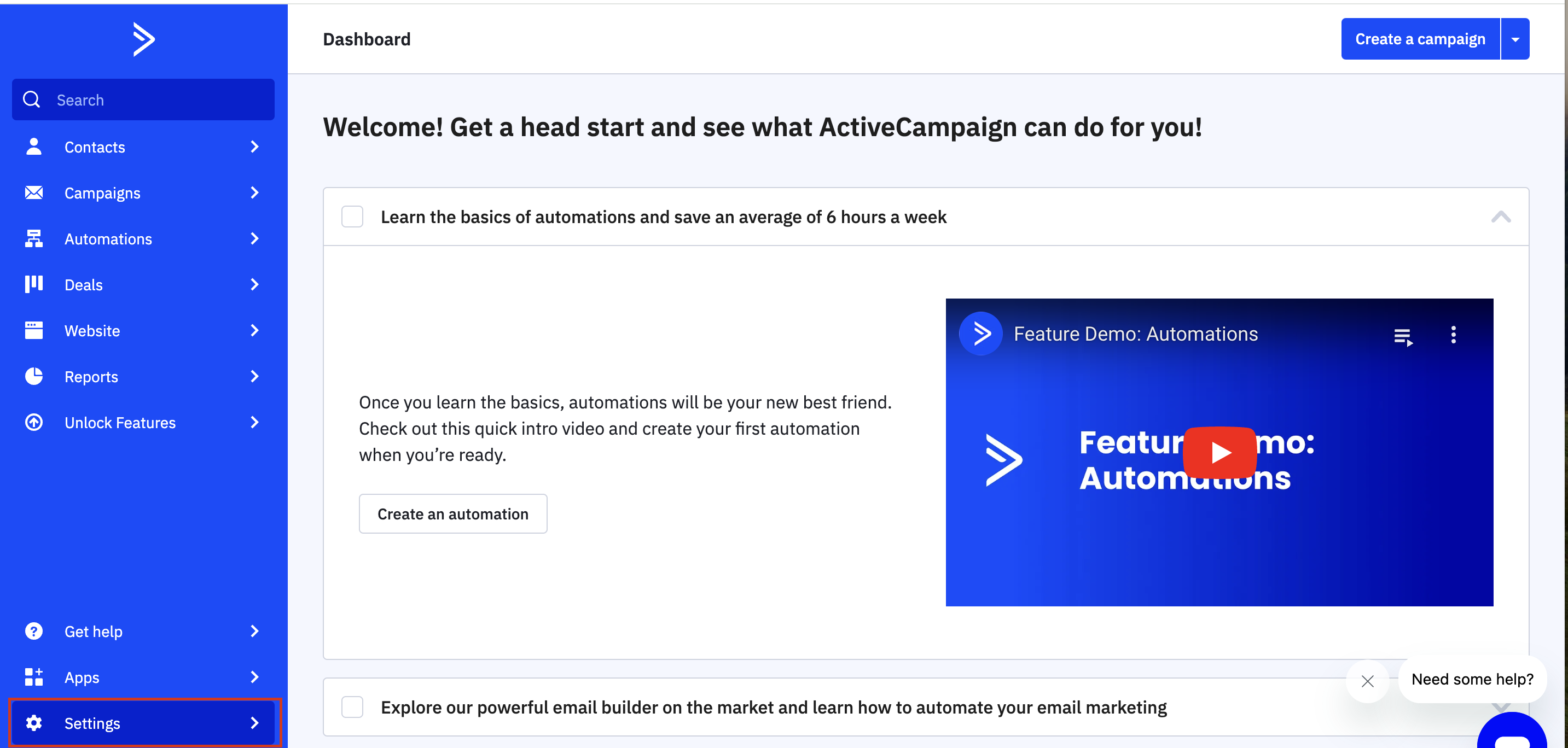
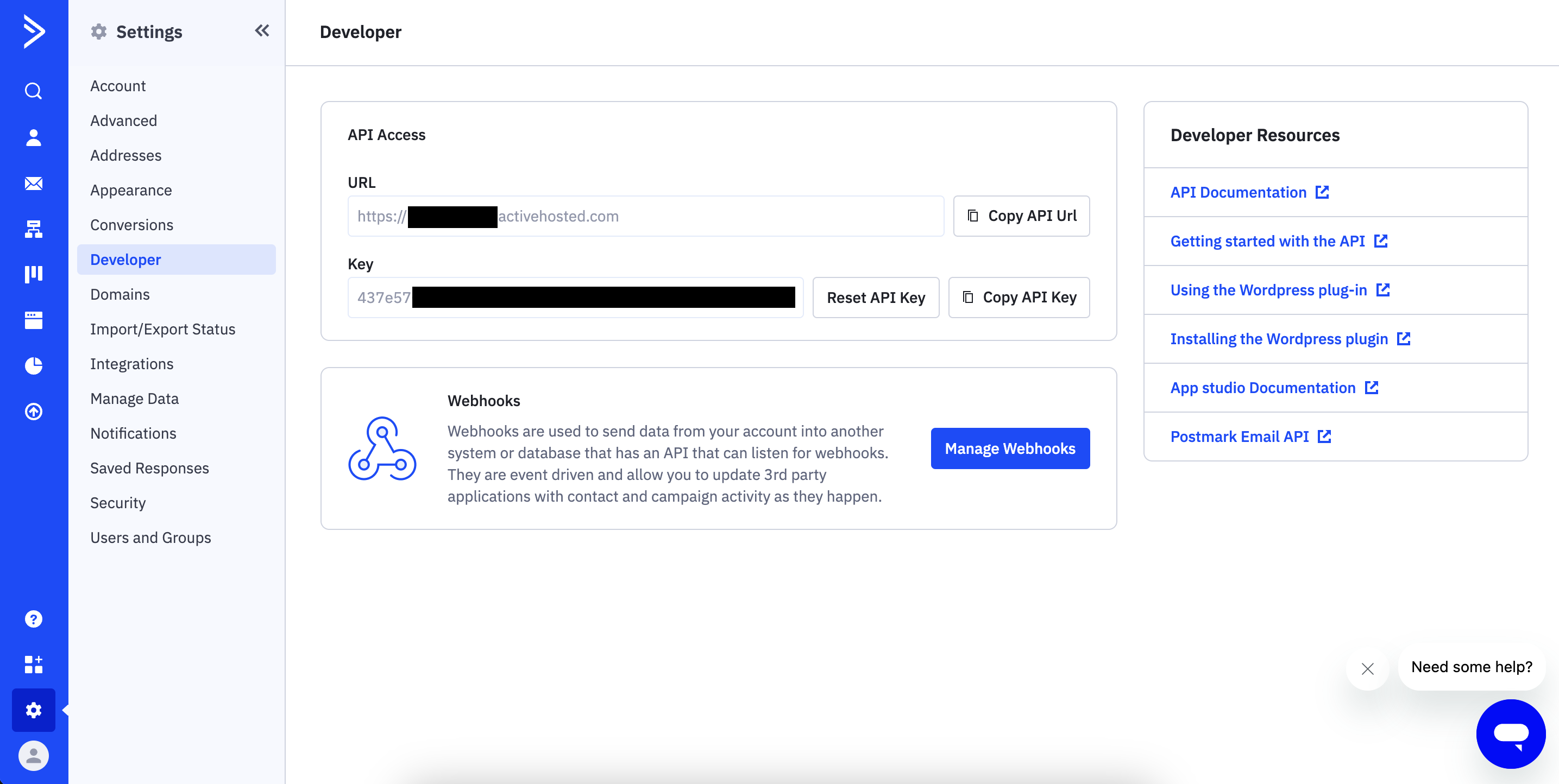
Click on the "Settings" button and click on the "Developer" button on the side bar, as shown in the image below:
- Copy the API key and the API URL.
Connecting ActiveCampaign to Peaka
Now that you have your ActiveCampaign API URL and API Key, you can connect it to Peaka using the following steps:
-
Navigate to the data model page in Peaka.
-
In the side menu bar, click the "New Data Source" button to initiate the connection process.
-
In the modal that appears, select "ActiveCampaign" as your data source.
-
Enter a name for your data source name and paste the ActiveCampaign API URL and API Key into the input fields.
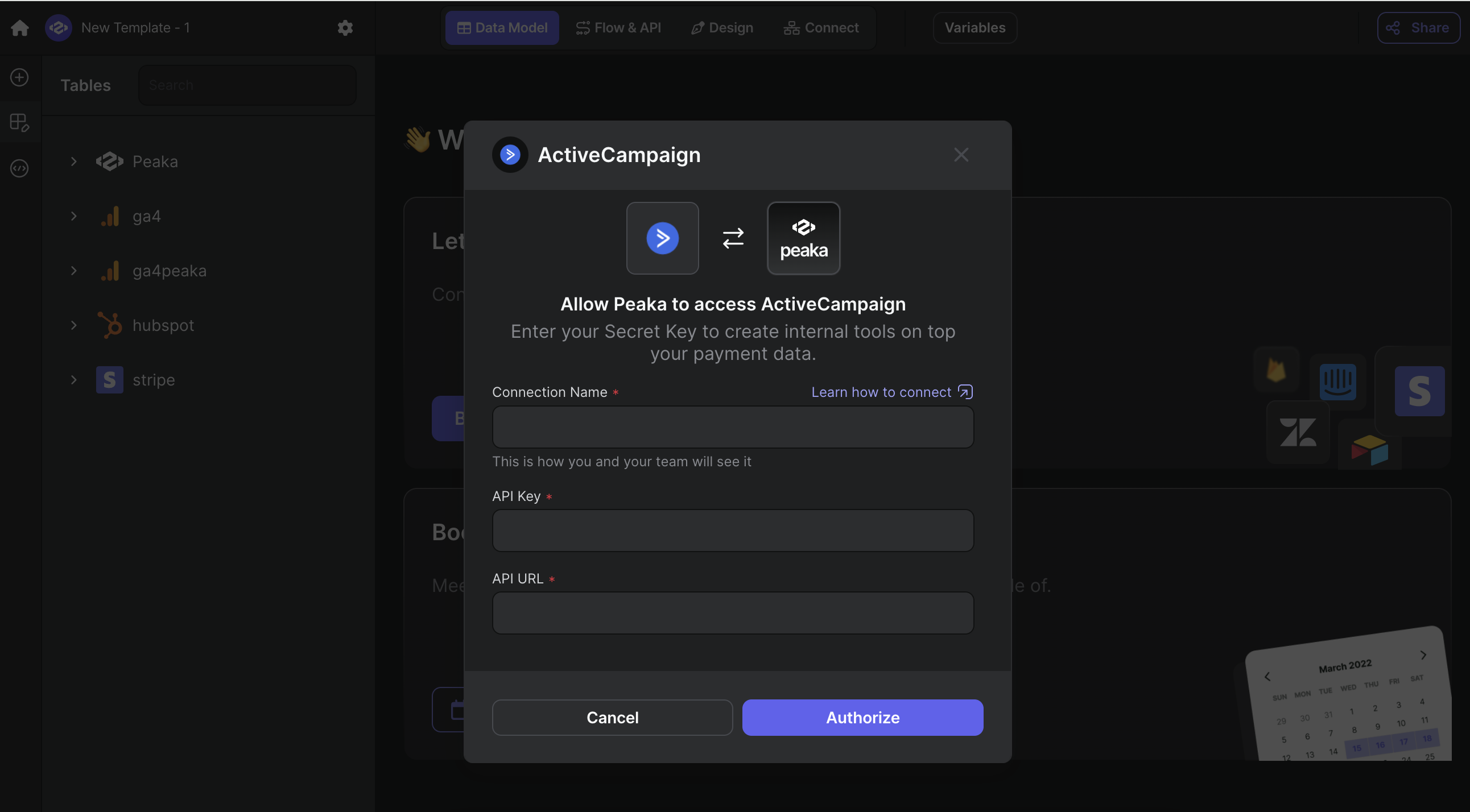
- Click "Authorize" to create your ActiveCampaign data source.
Congratulations! You've successfully connected ActiveCampaign to Peaka. You can now access and manage your ActiveCampaign data seamlessly within the Peaka platform.