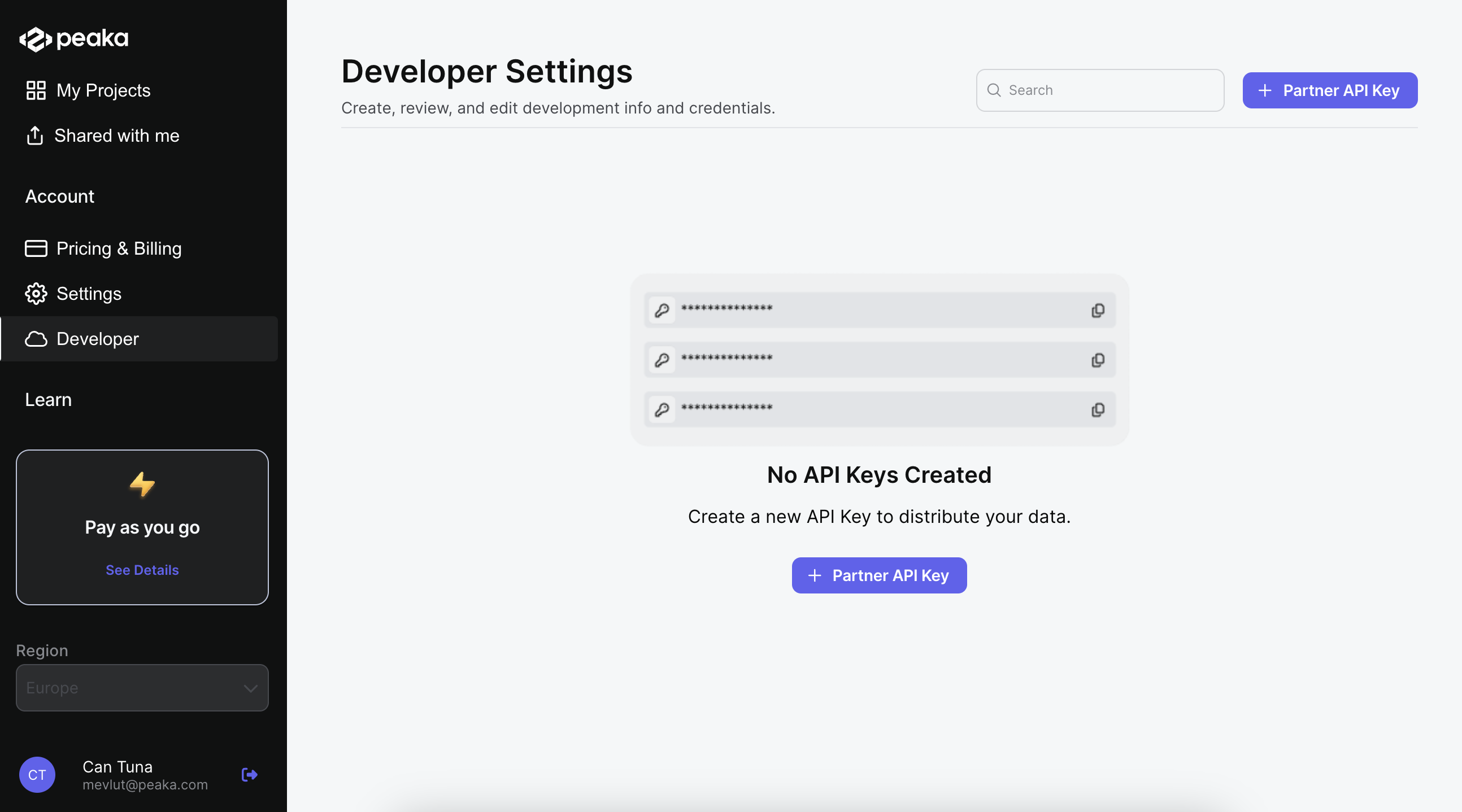
This guide will show you how to create, manage, and update your Partner API Key within the Peaka platform.
The Developer section is available to all Peaka users. You can find it in the sidebar on the homepage.
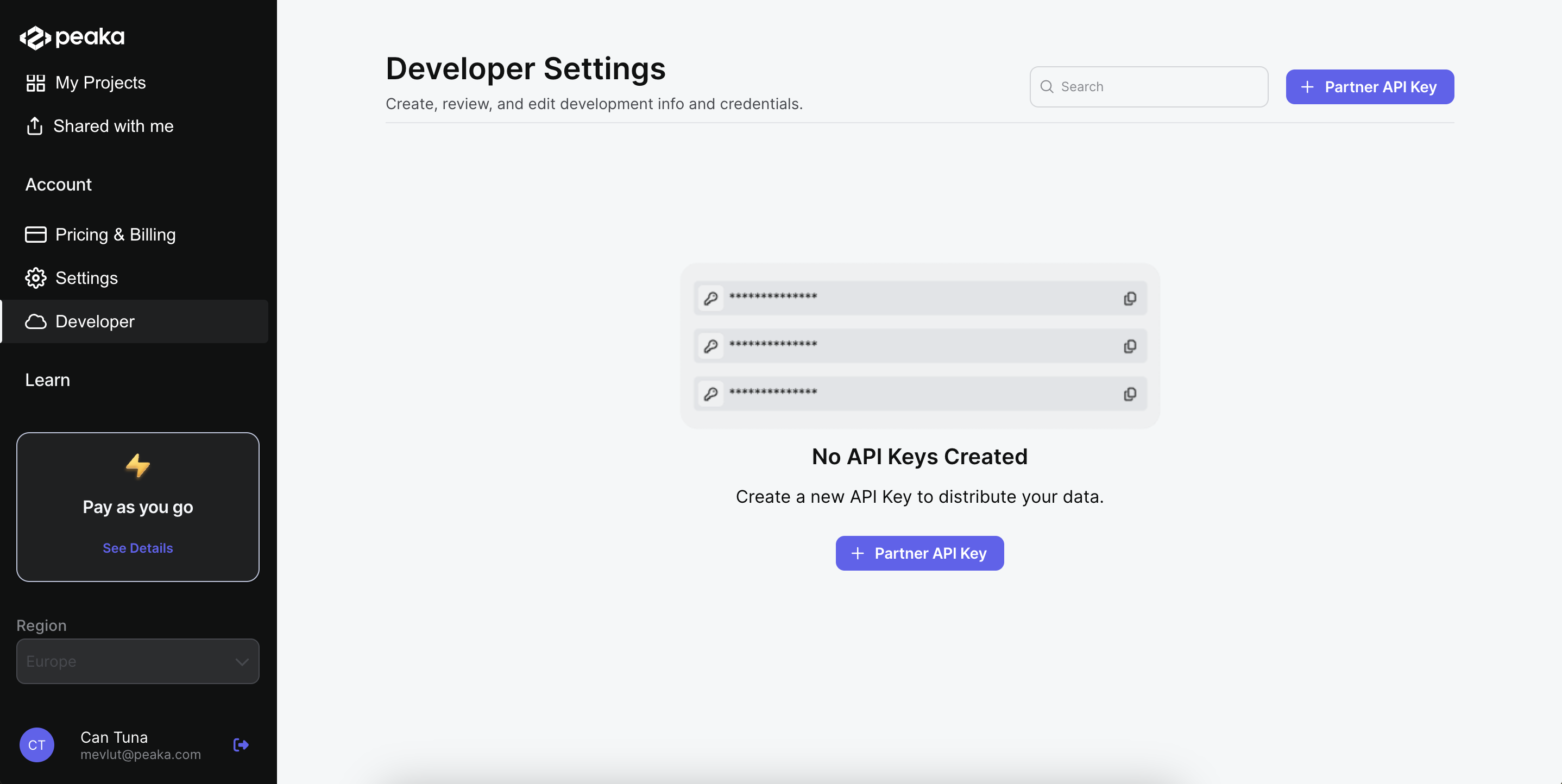
Creating a Partner API Key
- Navigate to the Developer section.
- Click on the Partner API Key button to open a dialog box.
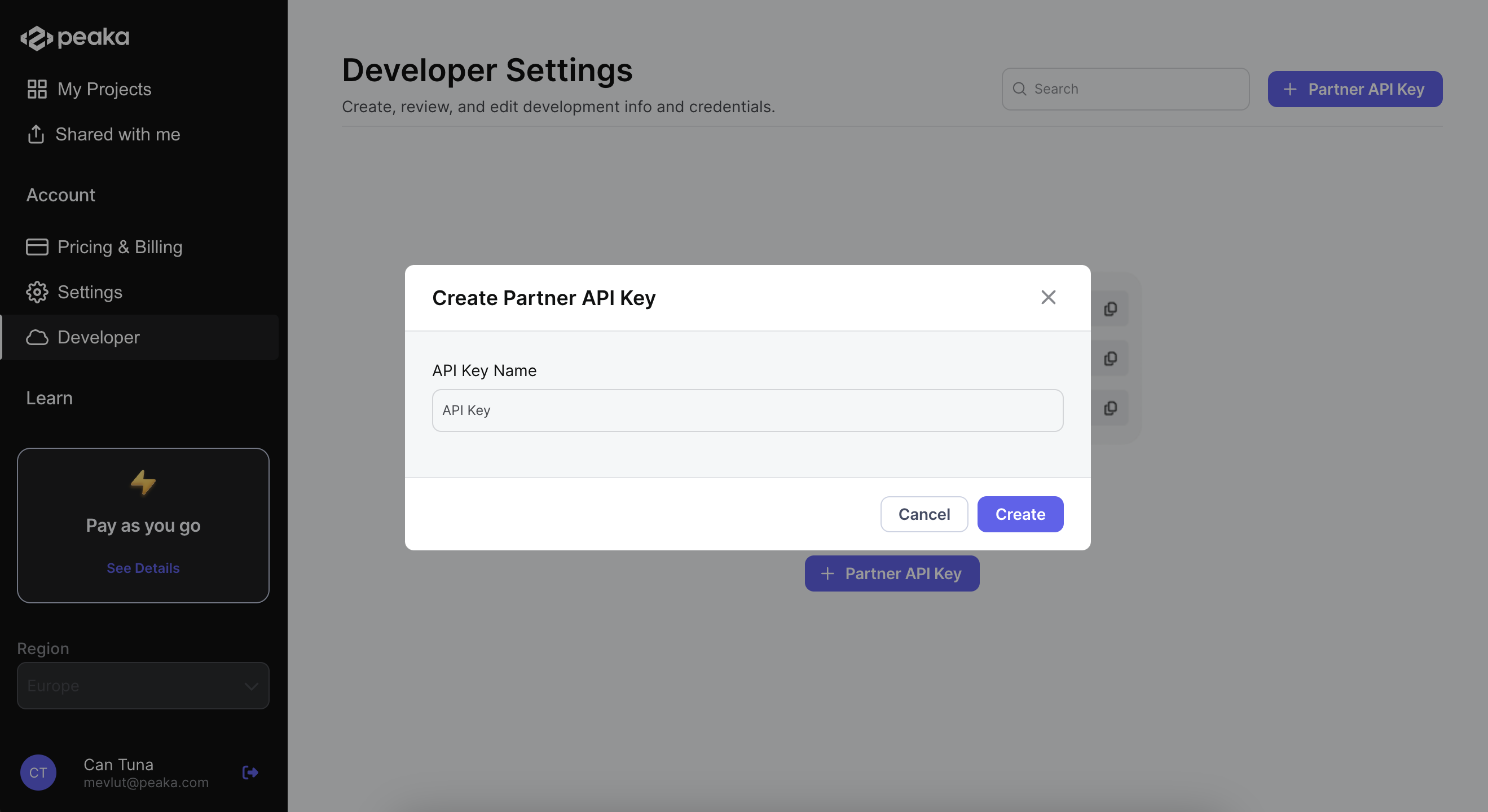
- Fill in the form by entering your desired API Key Name.
- Click on the Create button.
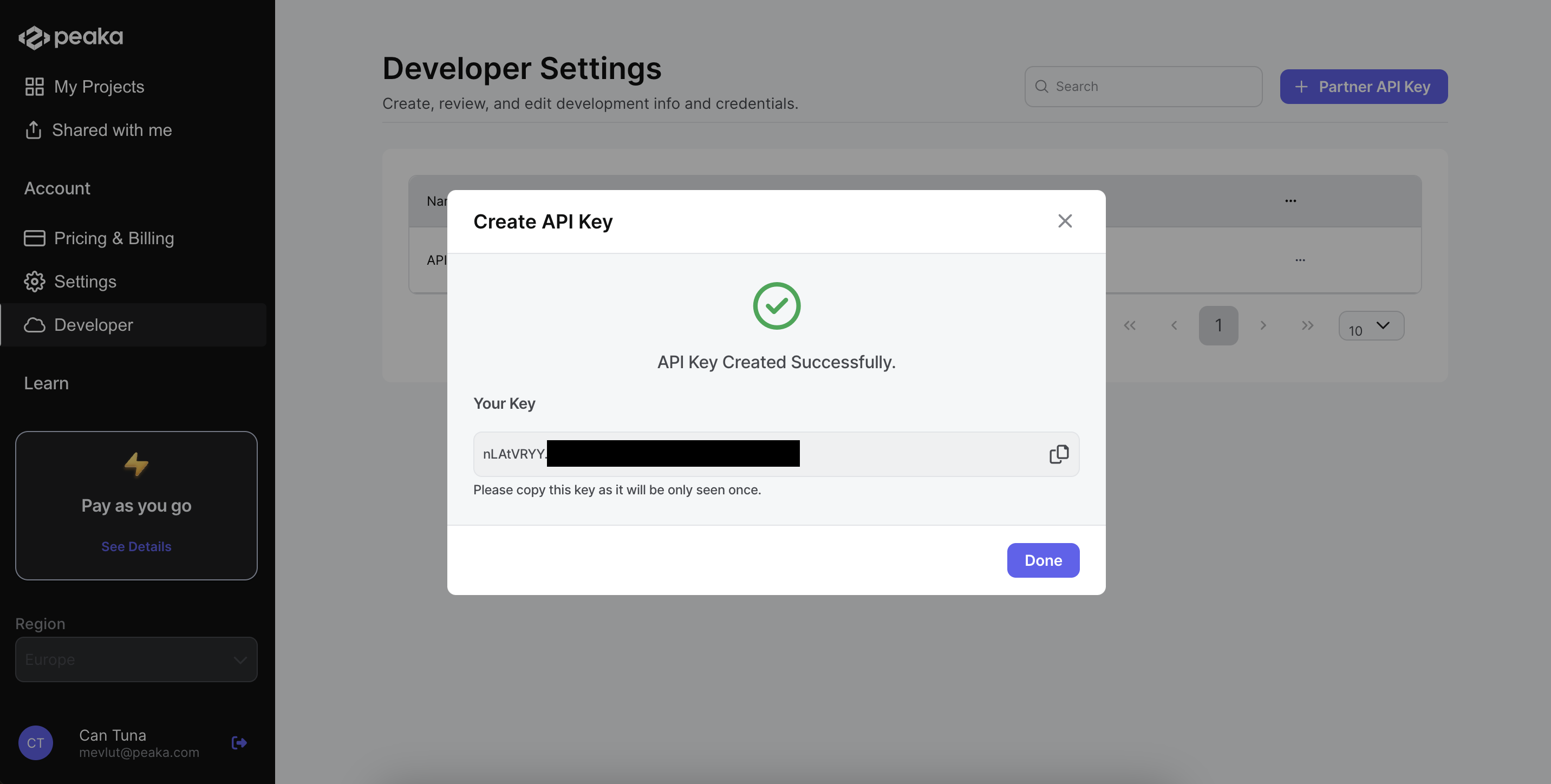
Your Partner API Key will be displayed in the dialog box, where you can copy and use it.
Updating Status
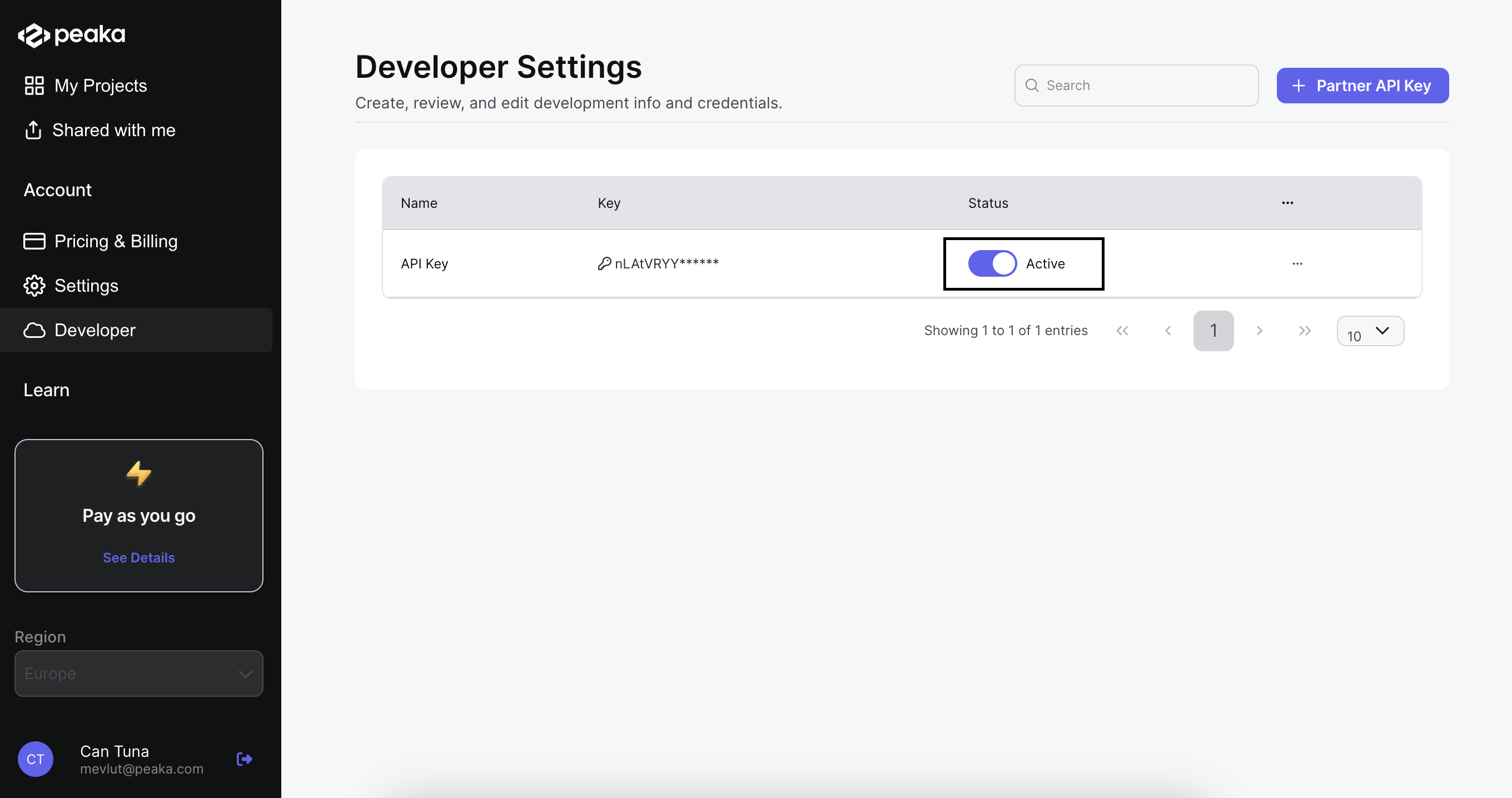
By default, when a Partner API Key is created, its status is set to active. If you wish to deactivate the key, toggle the switch to the off position.
Editing a Partner API Key
- Click on the three dots icon of Partner API Key which you want to edit.
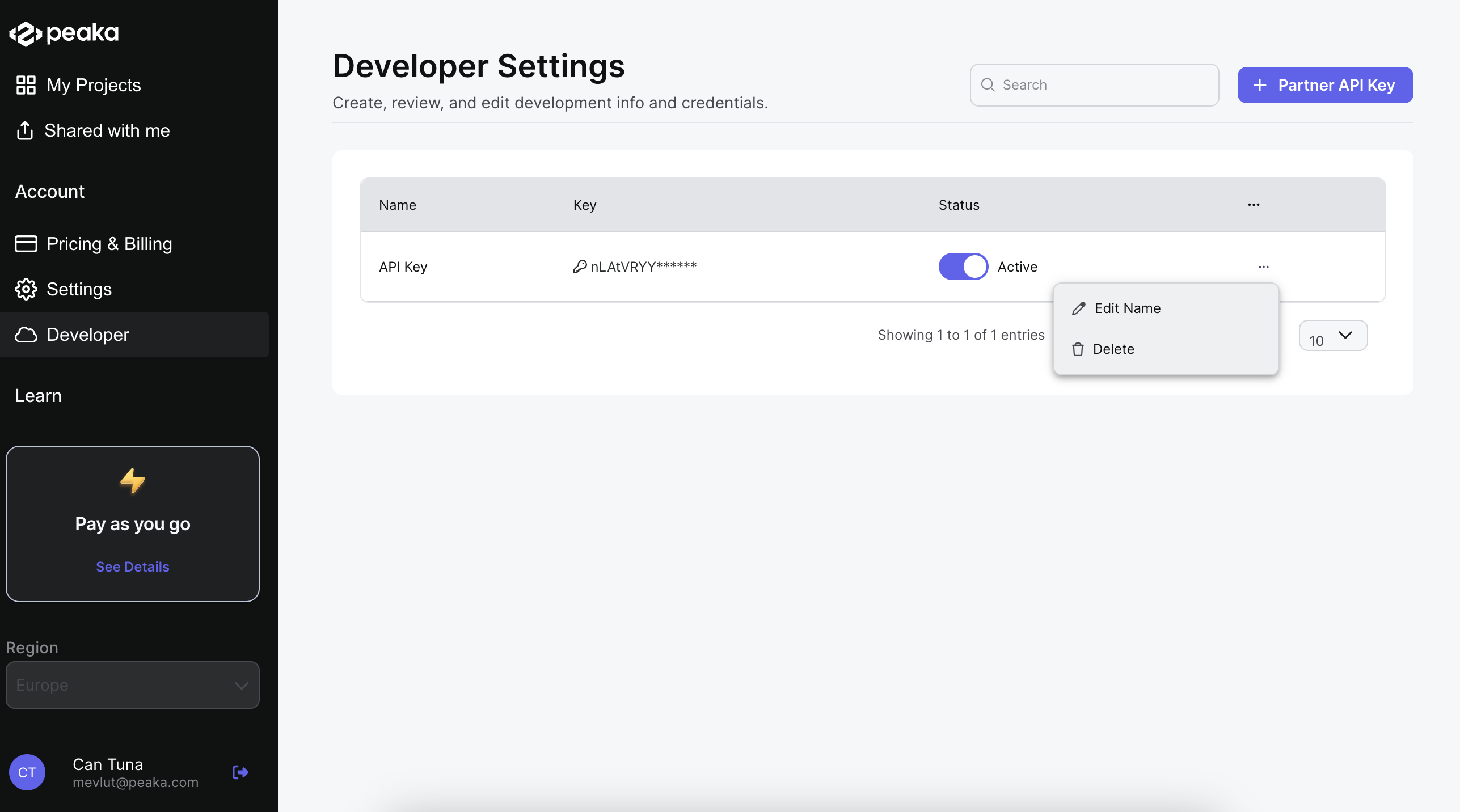
- Select the Edit Name button, which will open a dialog box.
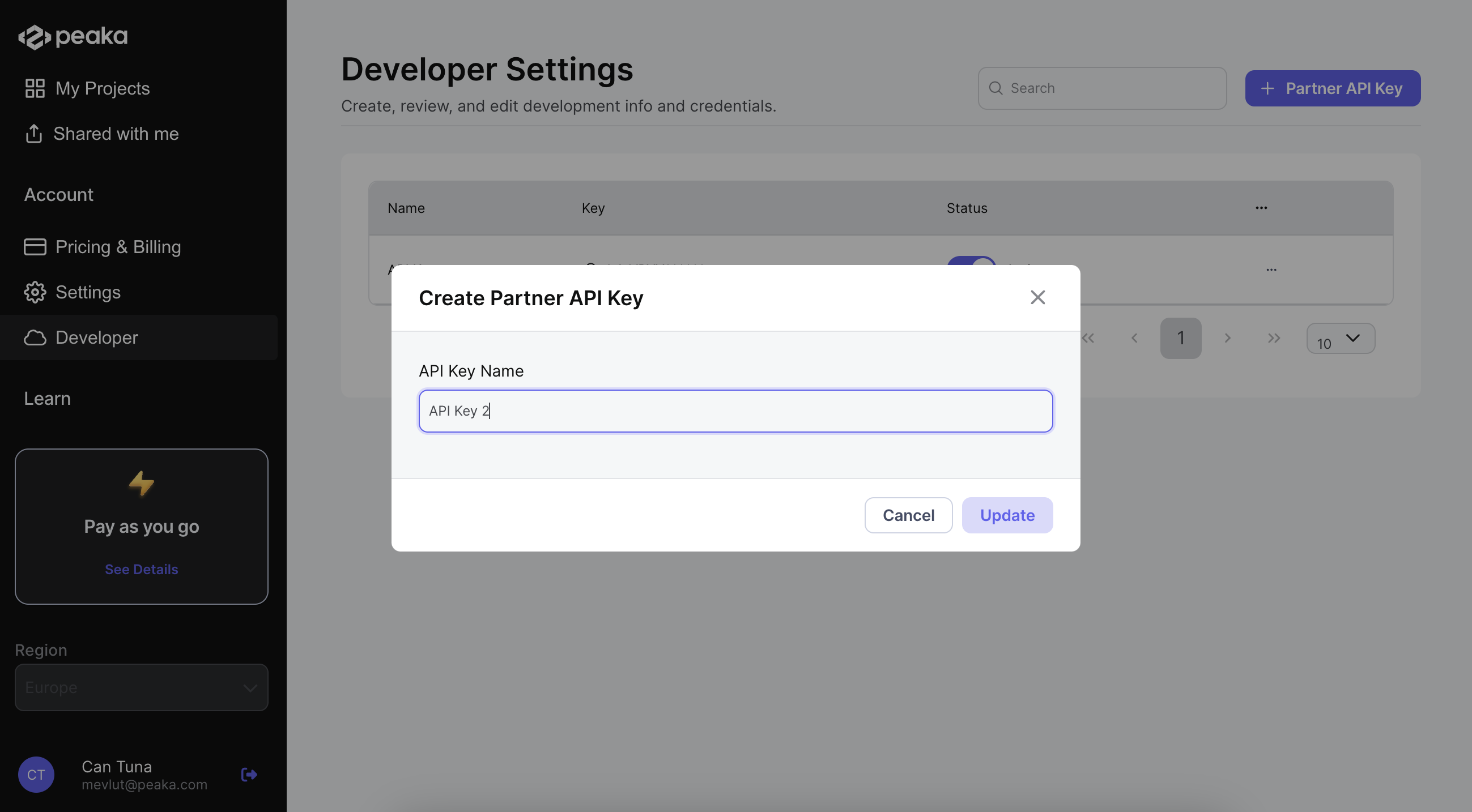
- Enter the new API Key Name and click on the Update button.
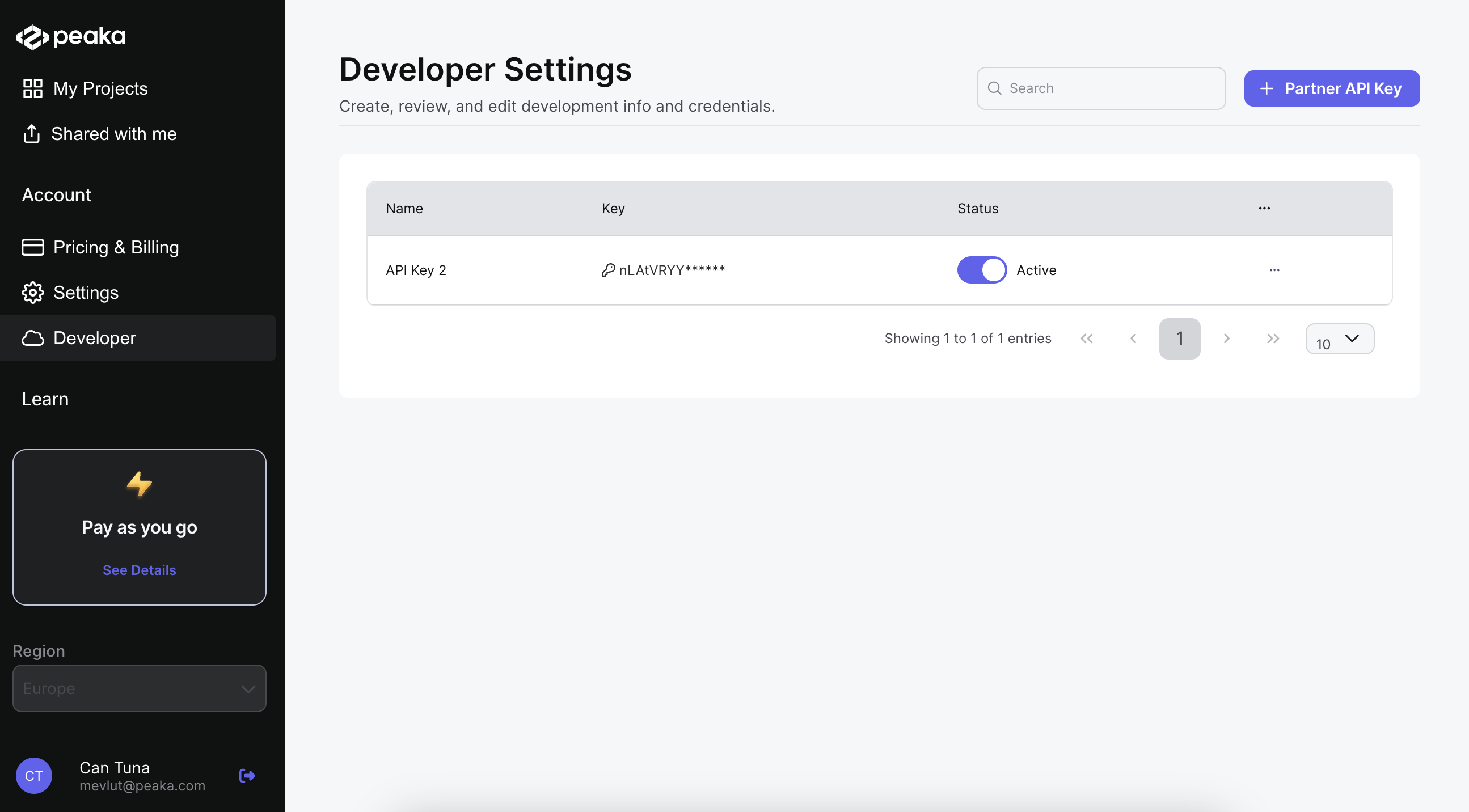
Your API Key name will be updated accordingly.
Deleting a Partner API Key
- Click on the three dots icon of Partner API Key which you want to delete.
- Click the Delete button.
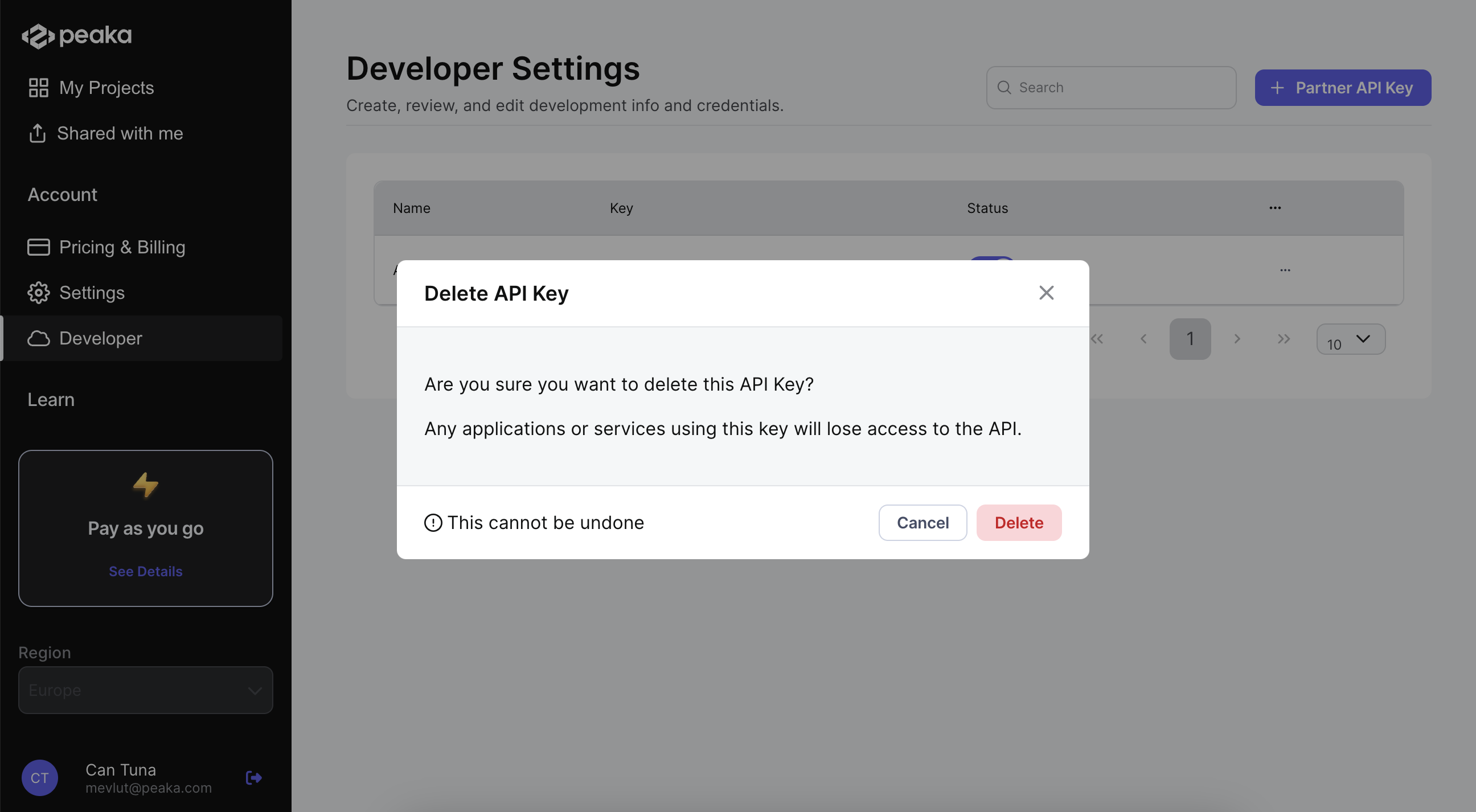
Your Partner API Key will be deleted.